
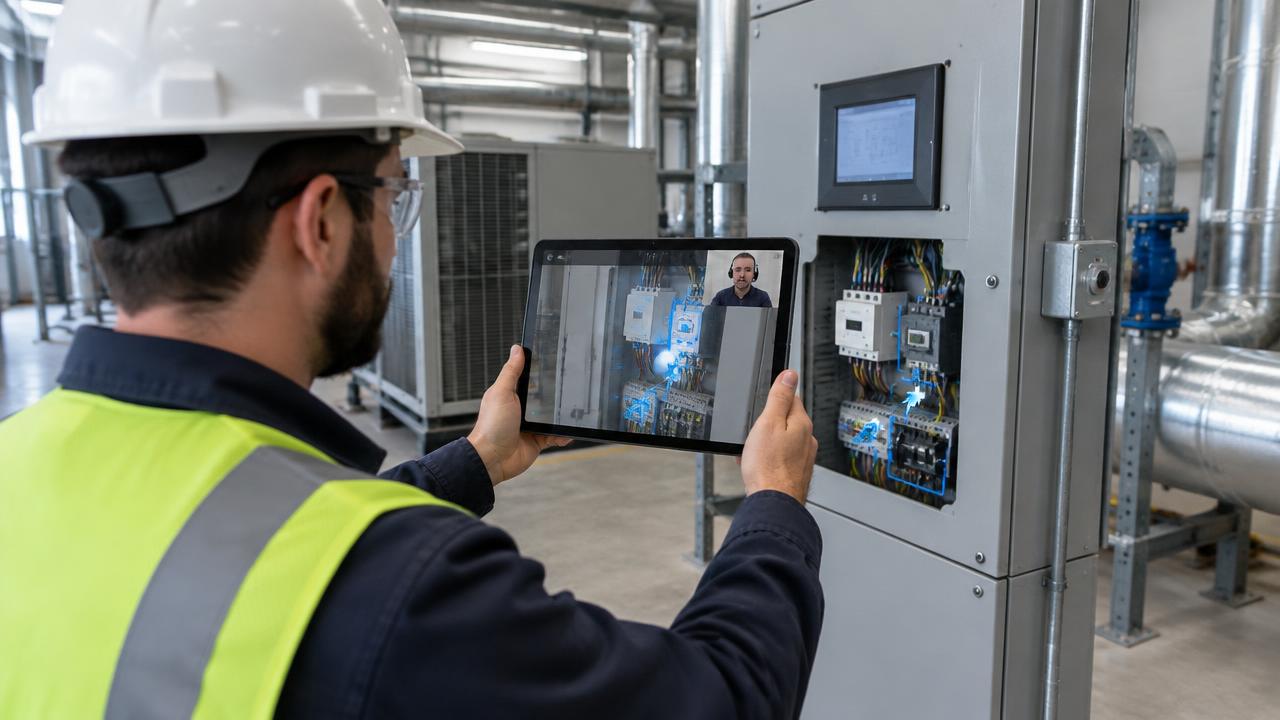
Quick answer: AR remote assistance puts a remote expert's arrows, circles, and markers on top of a live camera view, so the person on site sees exactly where to act. For most support teams, phone- and tablet-based AR is the practical choice: it costs nothing extra to deploy and customers already have the device. Headsets and smart glasses make sense mainly for hands-busy technicians who repeat the same work.
Augmented reality gets a lot of hype. Vendor videos show technicians in futuristic headsets with floating 3D diagrams. Real support calls look different: a homeowner holding a phone in one hand and a flashlight in the other, or a junior technician on a rooftop with patchy signal. This guide is an honest look at when AR helps a support call, when it gets in the way, and how to choose.
What is AR remote assistance?
AR remote assistance (also called AR remote support or augmented reality remote assistance) combines a live video call with visual markers placed on the scene. The remote expert taps or draws on their screen, and the marker appears on the on-site person's screen over the real object: "this screw," "that valve," "not this wire."
There are two levels:
2D annotation on live video. Arrows and drawings on the video frame. Simple, works in any browser, and covers the large majority of support needs.
Spatially anchored AR. Markers "stick" to the real object as the camera moves, using the device's motion sensors and computer vision. Apple's ARKit and Google's ARCore are the platform toolkits behind most phone-based anchoring.
Phone and tablet AR vs. headsets and smart glasses
| Factor | Phone / tablet AR | Headset / smart glasses |
|---|---|---|
| Device cost | Already owned by customer or tech | Extra hardware per technician |
| Works for customers | Yes, through a link | No, customers don't own them |
| Hands free | No, one hand holds the device | Yes |
| Training needed | Minimal | Fitting, charging, and practice |
| Fit with safety gear | Easy | Must be checked with hard hats and eye protection |
| Best for | Customer support, triage, occasional field help | Repetitive, hands-busy field work with trained crews |
The big dividing line is who is on site. If it's your customer, the answer is almost always their own phone, joined from a browser link. If it's your own trained technician doing complex, hands-on repairs every day, a headset may be worth piloting.
When AR genuinely helps a support call
Many similar parts. A panel with twenty identical switches, a cabinet full of valves. Pointing beats describing.
Language or vocabulary gaps. A customer doesn't know what a "pressure relief valve" is. An arrow solves it.
Step-by-step sequences. Marking step one, then step two, then step three reduces mistakes.
Training junior technicians. A senior expert can coach several juniors in a day without traveling.
Documentation. An annotated snapshot ("damage here, serial number here") is clearer evidence than a plain photo.
When AR gets in the way
Poor connection. Anchored AR and high-definition video need more bandwidth. On weak signal, a clear voice line and a sharp snapshot beat a laggy overlay.
Low light. Tracking and anchoring struggle in dark spaces. Ask the person to switch on the phone torch first.
Older devices. Not every phone supports full spatial AR. A tool that falls back cleanly to 2D annotation keeps working for everyone.
When the app install is the barrier. If the "AR" feature requires a customer to download and register in a special app, many won't. You lose the call before you start.
Safety-critical work. An overlay is guidance, not a substitute for lockout/tagout procedures or a qualified person on site. OSHA's control of hazardous energy rules still apply.
A simple decision guide
Is the person on site your customer? Use browser-based video with 2D annotation. Stop here.
Is it your technician, and are their hands busy most of the job? Consider a small headset pilot with three to five people.
Is the work repetitive and in a known environment (same plant, same machines)? Anchored AR and 3D content may pay back. Budget for building that content.
Is connectivity poor? Prioritize audio quality, snapshots, and offline capture over fancy overlays.
What to look for in AR collaboration tools
Browser join with no app for guests
Annotations that both sides see instantly, with freeze-frame so markers don't drift
Clean fallback from anchored AR to 2D drawing on older devices
Rear camera, zoom, and flashlight controls the expert can request
Annotated snapshots saved to the session record, with timestamps
Consent prompts and recording controls
Works on a normal mobile data connection
Pricing that doesn't require buying hardware to get started
Our remote visual assistance guide has a fuller twelve-point checklist.
A practical tip: freeze, then draw
The most useful AR technique on real calls is also the simplest. Ask the person to hold still, freeze the frame, draw your arrow on the still image, then unfreeze. The marker stays exactly where you meant it, even on shaky hands or a cheap phone. It works everywhere and confuses no one.
How to pilot AR remote assistance without wasting money
Before buying any hardware, run a short, measured pilot on the devices you already have.
Choose two call types. Pick ones where agents often say "I can't tell which one you mean," such as control panels or valve manifolds.
Set a baseline. Record how often those calls end in a site visit today and how long they take.
Use phone-based annotation for 30 days. Agents freeze, draw, and save annotated snapshots on every call.
Compare. Look at visits avoided, call length, and repeat calls. Listen to a few recordings to learn where instructions still confuse people.
Only then test headsets. If your own technicians still struggle because their hands are busy, give a small group headsets and compare against the phone results.
Most teams find that phone-based annotation captures most of the benefit. Headsets then become a targeted tool for specific crews, not a company-wide purchase. Our field service ROI guide shows how to turn the pilot numbers into a business case.
Common mistakes with AR support
Drawing on moving video. Markers land in the wrong spot. Freeze first.
Too many markers at once. One arrow per step keeps instructions clear.
Skipping the snapshot. Save the annotated image so the next technician sees what was found.
Forgetting the customer's view. Ask "Do you see the red arrow?" before moving on.
Where Virtual Support Pro fits
Virtual Support Pro takes the phone-first approach. Customers and technicians join from a link in their browser. Agents draw on the live video, freeze frames to annotate, request the rear camera and flashlight, and save annotated, timestamped snapshots to the session report. No headsets and no app downloads are needed. You can try it free for 14 days.
Frequently asked questions
What is AR remote assistance?
A live video call where a remote expert places arrows and markers on the on-site person's camera view to show exactly where to act.
Do I need smart glasses for AR remote support?
No. Most AR remote support runs on ordinary phones and tablets. Smart glasses are optional and mainly help hands-busy field technicians.
Does AR remote assistance work in a web browser?
Yes, 2D annotation on live video works in modern phone browsers. Fully anchored 3D AR usually relies on device toolkits like ARKit or ARCore.
Is AR better than a regular video call?
For pointing at specific parts and walking through steps, yes. For simple "show me the problem" calls, clear video plus a sharp snapshot is often enough.
What are AR collaboration tools?
Software that lets two or more people share a live view and mark it up together, used for support, training, and inspections.
Keep reading
Sources
Apple, ARKit: developer.apple.com
Google, ARCore: developers.google.com/ar
W3C, WebXR Device API: w3.org/TR/webxr
OSHA, Control of Hazardous Energy (Lockout/Tagout): osha.gov
W3C, WebRTC specification: w3.org/TR/webrtc