
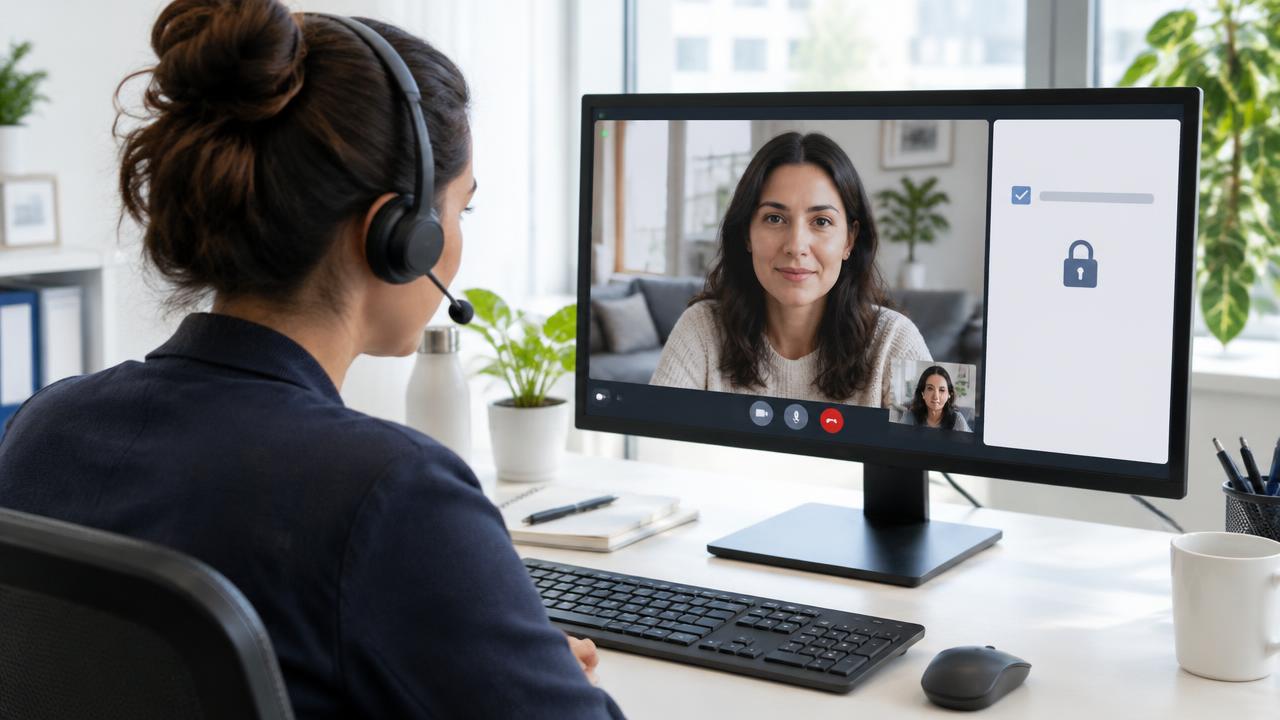
Quick answer: The primary purpose of remote assistance software is to let a helper see a problem and guide a fix without traveling. The main risk is unauthorized access, from scammers posing as support, weak session controls, or careless recording. The main limit is that it depends on the connection, the lighting, and the on-site person's ability to follow directions.
These are among the most-searched questions about remote assistance software, and most answers online are either vendor pitches or exam-prep one-liners. Below, each question gets a short direct answer, followed by the practical detail a support manager needs to decide, deploy, and stay safe.
What is the primary purpose of remote assistance software?
Short answer: To solve problems at a distance by giving the helper a direct view of the issue, either a computer screen or a real-world scene through a camera, so they can diagnose and guide a fix in real time.
There are two families:
Screen-based remote assistance (remote desktop): an IT technician views or controls a computer to fix software problems.
Camera-based remote assistance (remote visual assistance): an agent sees the physical world through a phone camera, such as a furnace, a breaker panel, or storm damage, and guides the person on site. Our remote visual assistance guide covers this in depth.
Both aim for the same business results: fewer site visits, faster resolution, more fixes on the first try, and a record of what happened.
What is a potential risk of using remote assistance software?
Short answer: Unauthorized access. Someone who shouldn't be in the session, or who isn't who they claim to be, gains a view of private systems, homes, or data.
The FTC warns that scammers routinely pose as tech support and persuade people to grant remote access (FTC, tech support scams). The FBI's Internet Crime Complaint Center tracks the same pattern in its annual Internet Crime Reports. Legitimate teams face related risks:
Risks and how to reduce them
| Risk | What it looks like | How to reduce it |
|---|---|---|
| Impersonation | Scammer pretends to be your support team | Only start sessions from your verified number or domain; tell customers you never cold-call for access |
| Reused or leaked links | A session link is forwarded and opened by someone else | One-time, expiring links tied to a specific session |
| Excess control | Remote control is granted when viewing would do | Default to view-only; require explicit approval for control |
| Recording without consent | Video saved without the customer's knowledge | Clear consent prompt and logged consent; follow your state's recording laws |
| Accidental private data | Camera shows family photos, documents, or health information | Coach customers to frame the problem; let agents pause and blur; set retention limits |
| Weak agent accounts | Shared logins, no multi-factor authentication | Individual accounts, MFA, role-based permissions, audit logs |
| Data kept too long | Old recordings sit forever | Automatic retention and deletion policies |
NIST's guidance on remote access security (SP 800-46 Rev. 2) is a good baseline for IT teams writing their own policy. If your sessions might capture patient information, review the HHS HIPAA Security Rule requirements as well.
What is one major limitation of remote assistance software?
Short answer: It can only help as much as the connection and the person on site allow. If the video drops, the lighting is poor, or the person can't safely do what's asked, the call ends with a site visit anyway.
Other honest limits:
No hands on site. The expert can't physically test, measure, or replace anything.
Limited senses. Video doesn't carry smell, heat, or vibration. A gas smell or a burning odor needs an in-person response.
Skill of the on-site person. Some fixes are unsafe or illegal for a homeowner to attempt.
Camera limits. Glare, small labels, and dark spaces hide detail. High-resolution snapshots help.
Not every fault is visible. Intermittent faults may not appear during the call. AI help has limits too; see what AI can and can't diagnose on a live call.
The right goal isn't "solve everything remotely." It's "never send a visit blind." Even when a call can't fix the problem, it should tell you which technician, which part, and how urgent.
Why might using mobile remote assistance software be tricky?
Short answer: Phones bring variable networks, small screens, battery drain, many device and browser versions, and users who must hold the phone while also doing the work.
Signal changes as the person walks from the kitchen to the basement. Tools should adapt video quality instead of freezing. The FCC's broadband speed guide gives typical needs for video calling.
App installs and permissions. Each extra step loses people. Browser-based tools that join from a link avoid app stores entirely.
One hand busy. The person holds the phone and works with the other hand. Short, clear instructions matter.
Front vs. rear camera confusion. Let the agent request the rear camera with one tap.
Battery and heat. Long video calls drain batteries. Keep sessions focused.
A secure-session checklist for support teams
Start every session from your own system, never from an inbound request for access.
Use one-time, expiring links.
Show a plain-language consent notice and log it.
Default to view-only; ask before any control or screen share.
Require individual agent logins with multi-factor authentication.
Restrict who can watch recordings by role.
Set automatic retention and deletion periods.
Keep an audit log of who joined, what was captured, and who viewed it.
Teach customers how to recognize your legitimate contact method.
Review a sample of sessions every month.
How Virtual Support Pro handles these risks
Virtual Support Pro was built with these risks in mind. Sessions start from one-time links your team sends. Guests join in the browser with no app. Consent is shown and recorded before recording begins. Screen sharing requires the guest's approval. Captured photos carry timestamps. Workspace roles control who can see what, and retention settings remove old media on a schedule. Learn more about our approach on the compliance pages, or start a 14-day free trial.
Frequently asked questions
Is remote assistance software safe?
It is safe when sessions start from your verified system, use one-time links, require consent, and limit who can access recordings. Most harm comes from scammers who talk people into granting access.
Can someone use remote assistance to access my computer without permission?
Legitimate tools require the user to accept the session. Never grant access to someone who contacted you unexpectedly. Report suspected scams to the FTC at reportfraud.ftc.gov.
What is the difference between remote assistance and remote desktop?
Remote desktop is one kind of remote assistance focused on controlling a computer. Remote visual assistance uses a phone camera to help with physical problems.
Do I need consent to record a remote support call?
Recording consent rules vary by state and country, and some require every party to agree. Showing a clear notice and logging consent to everyone is the safest practice. Check with your legal team for your jurisdiction.
Can remote assistance replace site visits completely?
No. It removes many unnecessary visits and makes the rest more productive, but some work needs a qualified person on site.
Keep reading
Sources
FTC, How to Spot, Avoid, and Report Tech Support Scams: consumer.ftc.gov
FBI IC3, Annual Internet Crime Reports: ic3.gov
NIST SP 800-46 Rev. 2, Guide to Enterprise Telework, Remote Access, and BYOD Security: csrc.nist.gov
HHS, HIPAA Security Rule: hhs.gov
FCC, Broadband Speed Guide: fcc.gov