
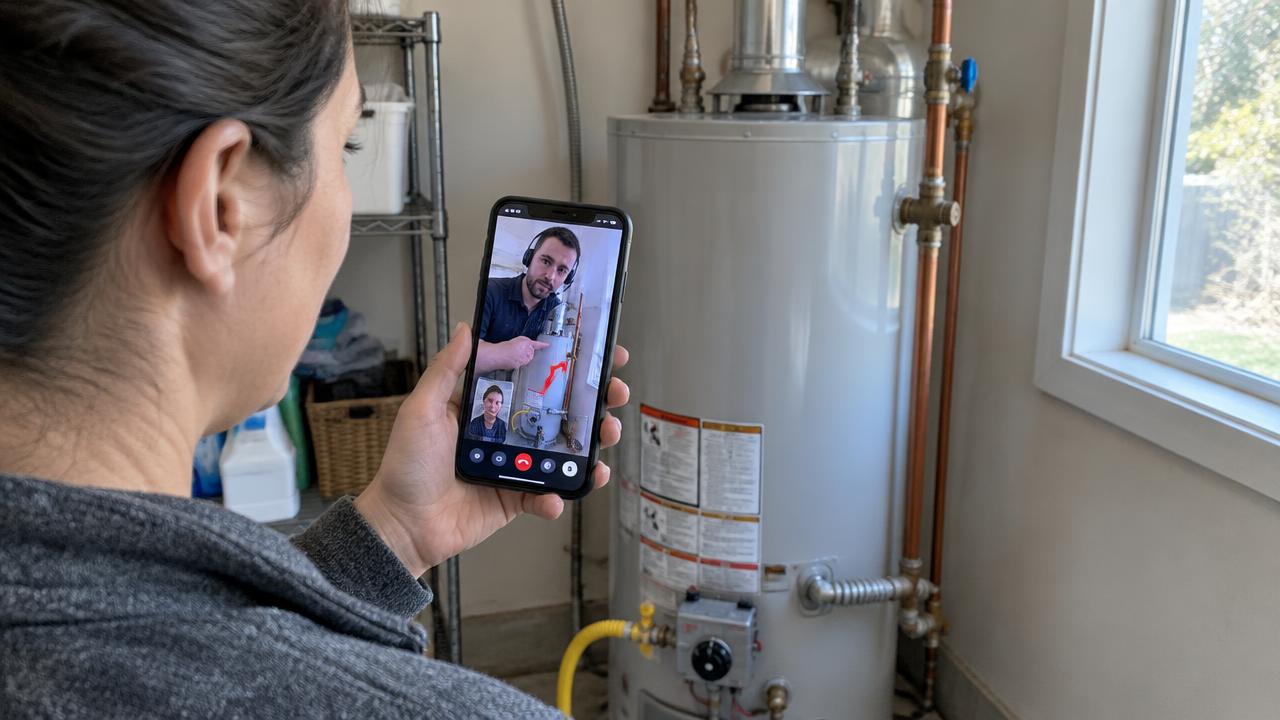
Quick answer: Remote visual assistance software lets a support agent see a customer's or technician's real-world problem through their phone camera during a live video call, then guide them to a fix with voice, on-screen drawings, and photos. It replaces many site visits and "describe what you see" phone calls with a shared view of the actual equipment.
I spent 25 years as a building and environmental inspector. One lesson from that work applies to every support desk: most wasted time comes from people trying to describe something the other person can't see. A homeowner says the water heater is "making a noise." A technician says the panel has "a red light on." The agent guesses, sends a truck, and the tech arrives with the wrong part. Remote visual assistance fixes that by letting everyone look at the same thing at once.
This guide covers what remote visual assistance is, how a live session works step by step, which industries get the most out of it, and a checklist for choosing a tool.
What is remote visual assistance?
Remote visual assistance (also called remote visual support or visual remote assistance) is live, camera-based help. One person is on site with a smartphone or tablet. The other person, an agent, expert, or supervisor, is somewhere else and watches the live video. The expert can talk, point, draw arrows on the screen, take high-resolution snapshots, and walk the on-site person through each step.
It is different from two neighboring categories:
Remote desktop software lets an IT technician see and control a computer screen. It can't see a furnace, a roof, or a breaker panel.
General video meetings connect faces in a meeting room. They usually need accounts or app installs, and they don't produce the timestamped photo record a support or warranty team needs afterward.
Remote visual assistance sits between the two. It is built for the physical world, for people who aren't technical, and for the record-keeping that support work requires.
How a live remote visual assistance session works
Most sessions follow the same five steps, whatever product you use.
Send a link. The agent sends a text message or email with a one-time link. On a well-designed platform the customer taps it and the browser opens the camera. Nothing to download, no account to create. This matters more than any other feature: every extra step loses customers, especially older ones or people standing in a dark basement.
Get consent and connect. The customer allows camera and microphone access. Good tools show a clear consent notice before recording starts and log that consent.
See and guide. The agent watches the live video, asks the customer to move closer or switch on a flashlight, and draws on the frame: "turn this valve," "read me this label." Modern browsers support this through WebRTC, the open standard for real-time video in the browser (W3C WebRTC specification).
Capture evidence. The agent takes snapshots of serial numbers, damage, or readings. Each image should carry a time and, where allowed, a location, so it can support a warranty claim or service record.
Resolve and record. The issue is fixed on the call, or the agent books a visit knowing exactly which part and which skill are needed. The session summary, photos, and notes go into the ticket.
Where remote visual assistance pays off
The value comes from three things: fewer truck rolls, more fixes on the first visit, and shorter calls. Here is where I've seen it fit best.
Appliance, HVAC and home services
Many "broken" appliances turn out to be a tripped breaker, a closed valve, or a filter. A two-minute look settles it. When a visit is still needed, the technician arrives with the right part. See our guide to reducing truck rolls and the truck roll cost calculator to put numbers on your own operation.
Manufacturers and equipment makers
Field equipment, solar inverters, batteries, and industrial controls often need an expert who sits at headquarters. Visual assistance lets one senior engineer support many junior field techs without flying anywhere.
Insurance and warranty
Adjusters and warranty teams use live video to check damage and confirm product condition before approving a claim. Verified, timestamped photos matter here; our post on photo fraud and verified capture explains why.
Property management and facilities
A maintenance coordinator can triage tenant requests over video and send the right trade, or talk the tenant through resetting a garbage disposal.
Building and code inspections
The same technology runs virtual building inspections. That is the other half of our platform, covered in our remote visual inspection guide.
Remote visual assistance vs. the alternatives
| Approach | Sees physical equipment | No app for customer | Annotation on video | Evidence record |
|---|---|---|---|---|
| Phone call only | No | Yes | No | No |
| Customer emails photos | Partly, delayed | Yes | No | Partial |
| Consumer video chat apps | Yes | Often not | No | No |
| Remote desktop tools | No (screen only) | No | Screen only | Session logs |
| Remote visual assistance software | Yes | Yes (browser link) | Yes | Yes |
For a deeper look at why everyday video apps fall short in professional work, read video meetings vs. a purpose-built platform.
Checklist: how to choose remote visual assistance software
Score each tool against these twelve points. Anything that fails the first three is usually a dealbreaker for customer-facing support.
Browser join, no download. The customer opens a link and is on video in seconds.
Works on weak connections. Basements, rooftops, and rural sites have poor signal. Ask how the tool adapts video quality and whether snapshots still upload at full resolution.
Rear-camera control and flashlight. The agent should be able to ask for the rear camera and torch with one tap.
On-video annotation. Arrows and circles that both sides see.
High-resolution snapshots. Separate from the video stream, so labels and serial numbers are readable.
Timestamps and location data on captured images.
Consent and recording controls that match your state and industry rules.
Secure storage and access control, with roles for agents, supervisors, and admins.
Screen sharing for when the problem is on an app or a thermostat display, not a physical object.
Session reports that drop straight into the ticket.
Integrations or an API for your help desk or field service system.
Simple, predictable pricing that doesn't punish you for adding occasional users.
How to roll it out in 30 days
Week 1: Pick the three call types that most often end in a wasted visit. Write a short script for each.
Week 2: Train five agents. Have them run practice calls with coworkers at home.
Week 3: Go live on those call types only. Track resolved-on-call, visits avoided, and average handle time.
Week 4: Review the numbers and recordings, fix the script, and expand to more agents.
Measure against your own baseline. Every team's numbers are different, and the honest before-and-after from your own desk will convince leadership far more than any industry average. Our field service ROI guide shows how to build that case.
Where Virtual Support Pro fits
Virtual Support Pro is our remote visual assistance product. Customers join from a text or email link in their browser, with no app. Agents can annotate live video, switch to the rear camera, take high-resolution snapshots with timestamps, share screens securely, and send a branded session report when the call ends. You can try it free for 14 days, no credit card, on the free trial page.
Frequently asked questions
What is remote visual assistance software?
It is software that lets an expert see an on-site person's camera view in real time and guide them with voice, drawings, and snapshots, usually through a browser link with no app needed.
Is remote visual support the same as remote desktop?
No. Remote desktop controls a computer screen. Remote visual support shows the physical world through a phone camera.
Does the customer need to download an app?
Not with browser-based tools. Modern phone browsers support live video through the WebRTC standard, so a link is enough.
What internet speed does a video support call need?
A steady mobile data or Wi-Fi connection usually works. The FCC's broadband speed guide lists typical speeds for video calling. Good tools lower video quality on weak signals instead of dropping the call.
Is it secure?
It can be. Look for encrypted video, one-time session links, role-based access, consent logging, and clear data retention rules. See our companion article on the risks and limits of remote assistance software.
Keep reading
Sources
W3C, WebRTC: Real-Time Communication in Browsers: w3.org/TR/webrtc
FCC, Broadband Speed Guide: fcc.gov
NIST SP 800-46 Rev. 2, Guide to Enterprise Telework, Remote Access, and BYOD Security: csrc.nist.gov
FTC, How to Spot, Avoid, and Report Tech Support Scams: consumer.ftc.gov